

Google Chrome is the recommended browser for Rebrief.
If you’re having trouble signing in to Rebrief on Google Chrome, clearing the site data for app.rebrief.ai usually fixes the issue.
This resets your Rebrief session without affecting other websites or your browser as a whole.
Step-by-step: Clear site data for Rebrief (Chrome)
1. Open Rebrief in Chrome
Go to:
https://app.rebrief.ai
2. Open site settings
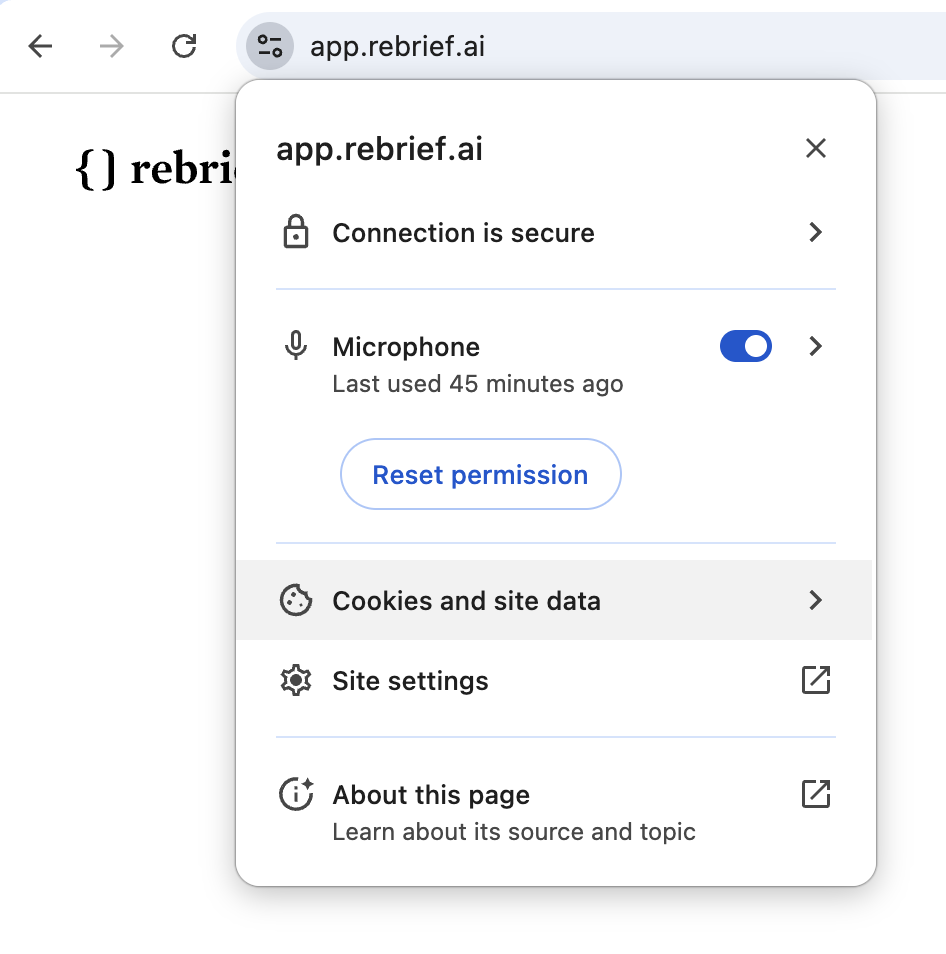
In the Chrome address bar:
- Click the slider / settings icon to the left of the URL
- Select Cookies and site data
3. Manage on-device site data
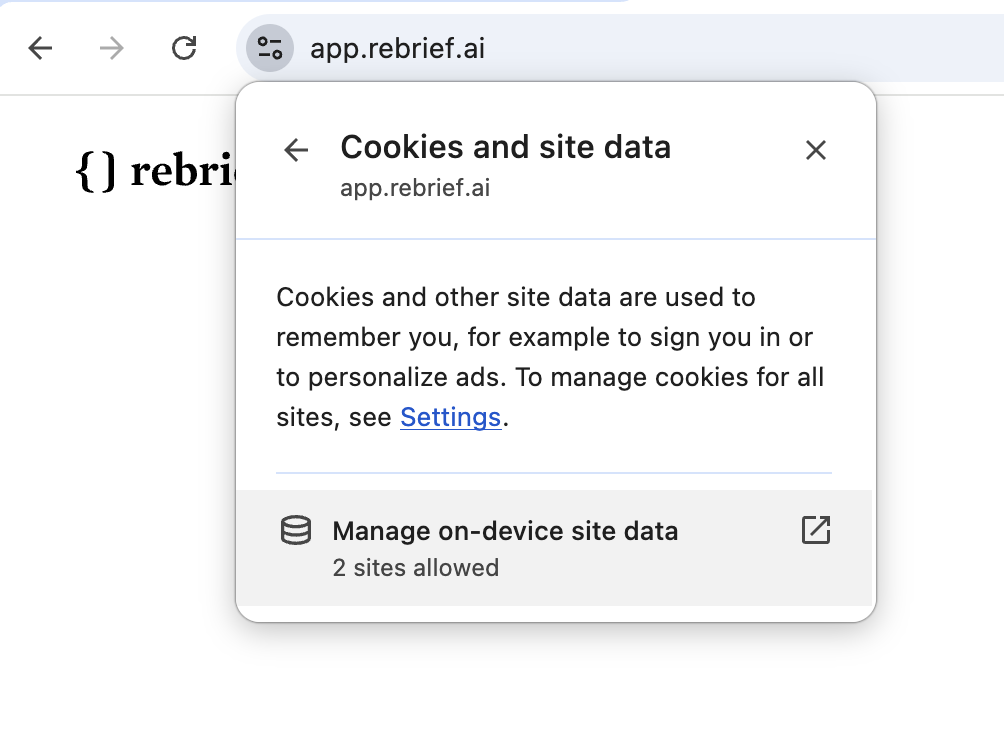
- Click Manage on-device site data
You should see entries for:
- app.rebrief.ai
- rebrief.ai
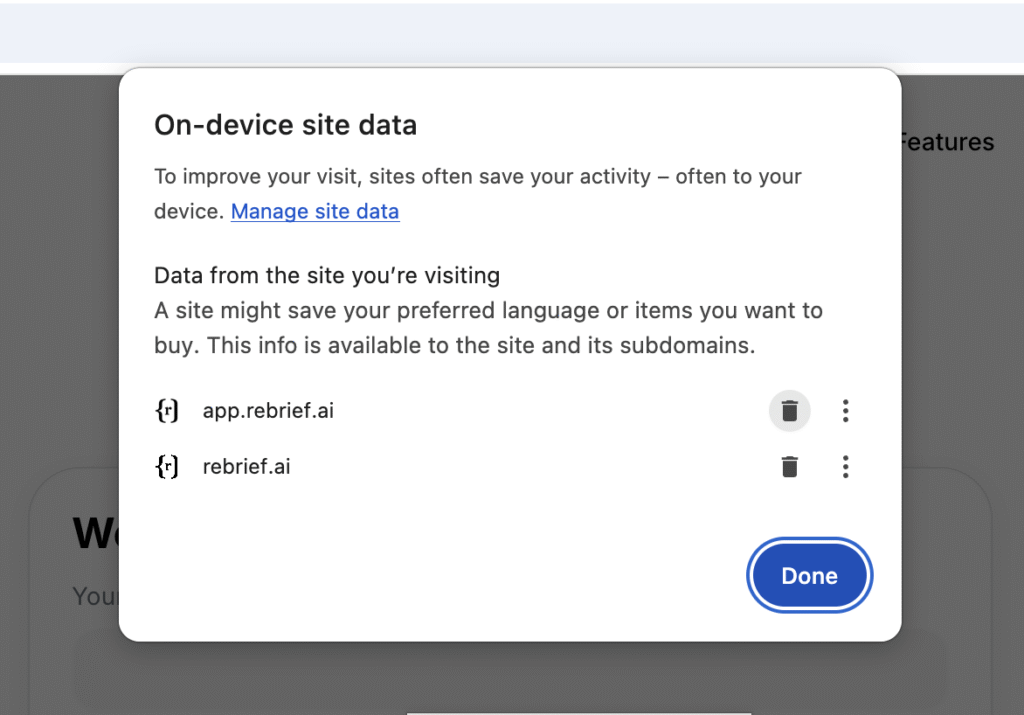
4. Delete Rebrief site data
- Click the trash icon 🗑️ next to each Rebrief entry
- Click Done
This removes stored cookies and local data for Rebrief only.
5. Refresh and sign in again
- Refresh the page
- Log in as usual
Your account and data are safe — this only resets the browser session.
Why this works
Chrome sometimes keeps outdated session data that can prevent sign-in. Clearing site data forces Chrome to start a fresh, clean session with Rebrief.
Still having trouble?
- Try opening Rebrief in an Incognito window
- Or restart Chrome and try again
If the issue persists, contact our live support and we’ll help you right away.