Welcome to Rebrief 👋 — the ambient documentation system built for dentistry and oral surgery. Rebrief listens to your appointments and automatically generates clear, complete, and medico-legally sound documentation so you can focus on patients instead of paperwork.
This guide will walk you through the core fundamentals of Rebrief so you can get value from day one.
What is Rebrief?
Rebrief is an AI-powered ambient documentation system designed specifically for dentists, oral surgeons, and their teams. Instead of typing notes during or after an appointment, you simply run Rebrief while you speak with your patient — and it generates:
- Clinical notes (SOAP or specialty-specific formats)
- Referral and consultation letters
- Treatment plans and follow-up instructions
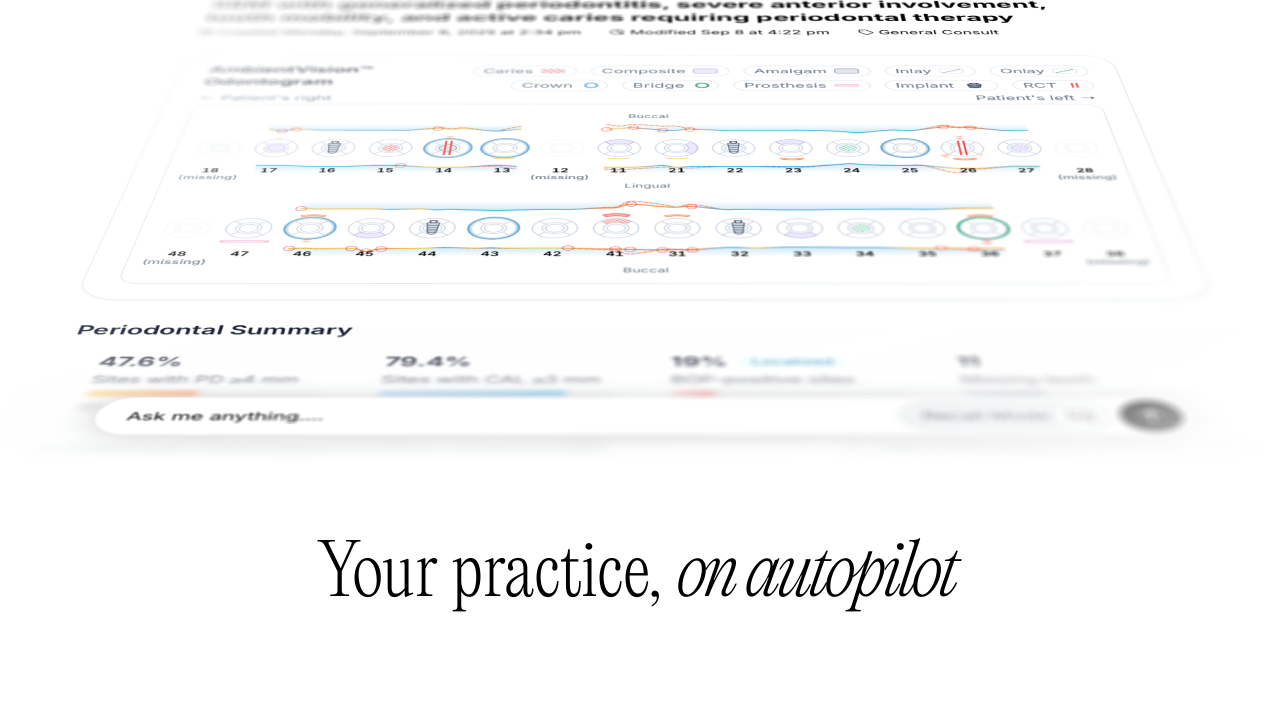
- Structured data like odontograms and perio charts
Why Use an Ambient Documentation System?
Clinicians waste 1–2 hours daily on documentation. In specialties like dentistry and OMFS, charting odontograms, perio metrics, and operative details makes it even slower. Rebrief eliminates the bottleneck by:
- Saving time – finish charting in minutes, not hours.
- Reducing errors – capture every detail consistently.
- Protecting legally – medico-legal quality notes by default.
- Improving workflow – seamless referrals and handovers.
First Steps
- Sign up & log in – Create your account at app.rebrief.ai and log into the dashboard.
- Start your first session – Press Start before beginning your appointment. After you finish, press Save.
- Review your note – Rebrief will generate a draft. Quickly review and approve it.
Viewing Past Notes
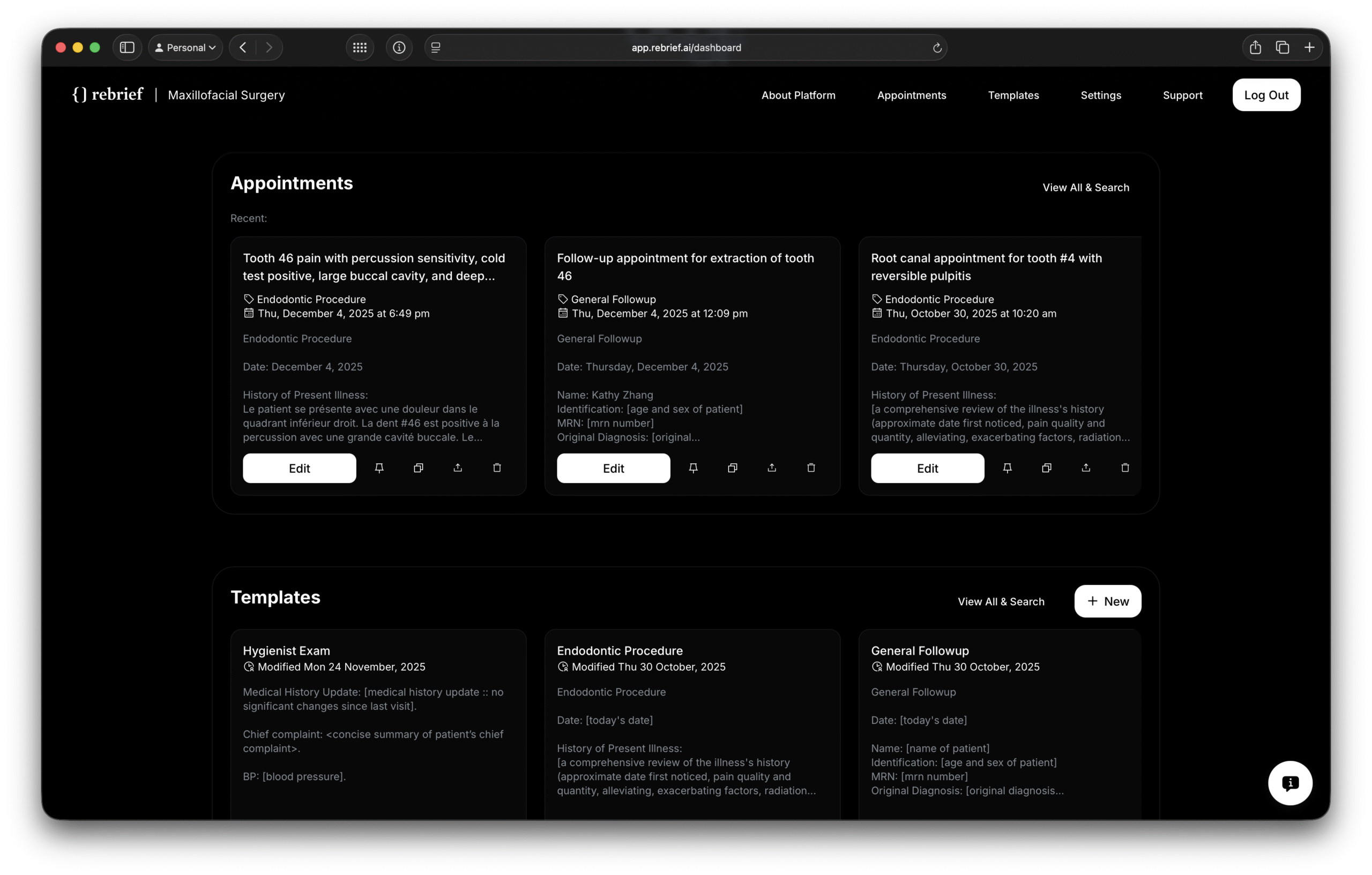
- Open the Dashboard – After logging into Rebrief you land on the Dashboard. Here you’ll see cards showing recent notes and templates. Each card displays a brief preview, along with the appointment type and date (e.g., “Endodontic Procedure – Thu Dec 4 2025”).
- Select a Note – To view a note in detail, click the Edit button on the desired card. This opens the complete appointment record in a new page (Figure 1)
- Use Quick Actions – Each note card also displays quick‑action icons (pin, copy, share via encrypted portal, delete) so you can act on a record directly from the dashboard.